
SSE Configuration Method for Proxying Remote MCP Services
1. Case Overview
This case aims to provide a detailed explanation of the complete process of creating an instance from the instance management page by selecting the custom mode, focusing on the filling standards for basic information in custom mode, to provide clear operational guidance for users.
2. Prerequisites
The user has successfully logged into the system and has permission to access the instance management page;
The basic information required for instance creation has been clarified (such as name, access mode, MCP protocol related configurations, etc.);
The MCP server has been deployed and is accessible normally.
3. Operation Steps
3.1 Enter the Instance Creation Page
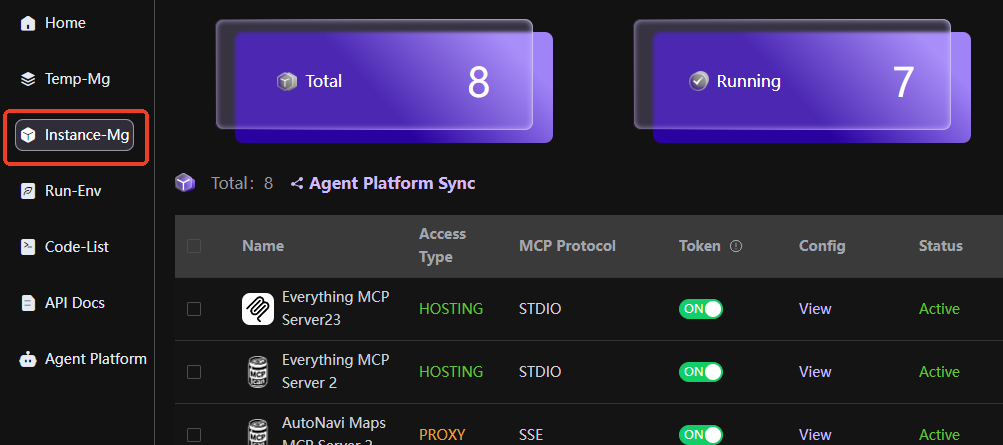
After logging into the system, find and click [Instance Management] in the left navigation bar to enter the instance management page;
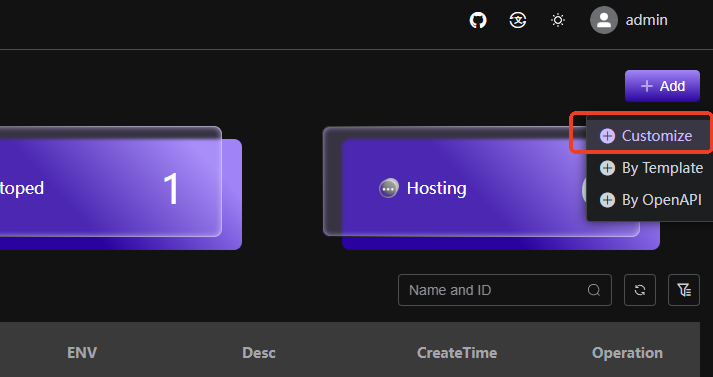
In the upper right corner of the instance management page, click the [Create Instance] button to pop up the instance creation options window.
3.2 Select Custom Creation Mode
In the pop-up instance creation options window, three creation modes are displayed (subject to the actual system), select [Custom Mode];
Click the [Custom Mode] option to enter the basic information filling page for custom mode instance creation (here taking hosted access mode and STDIO MCP protocol as an example).
3.3 Fill in Basic Information
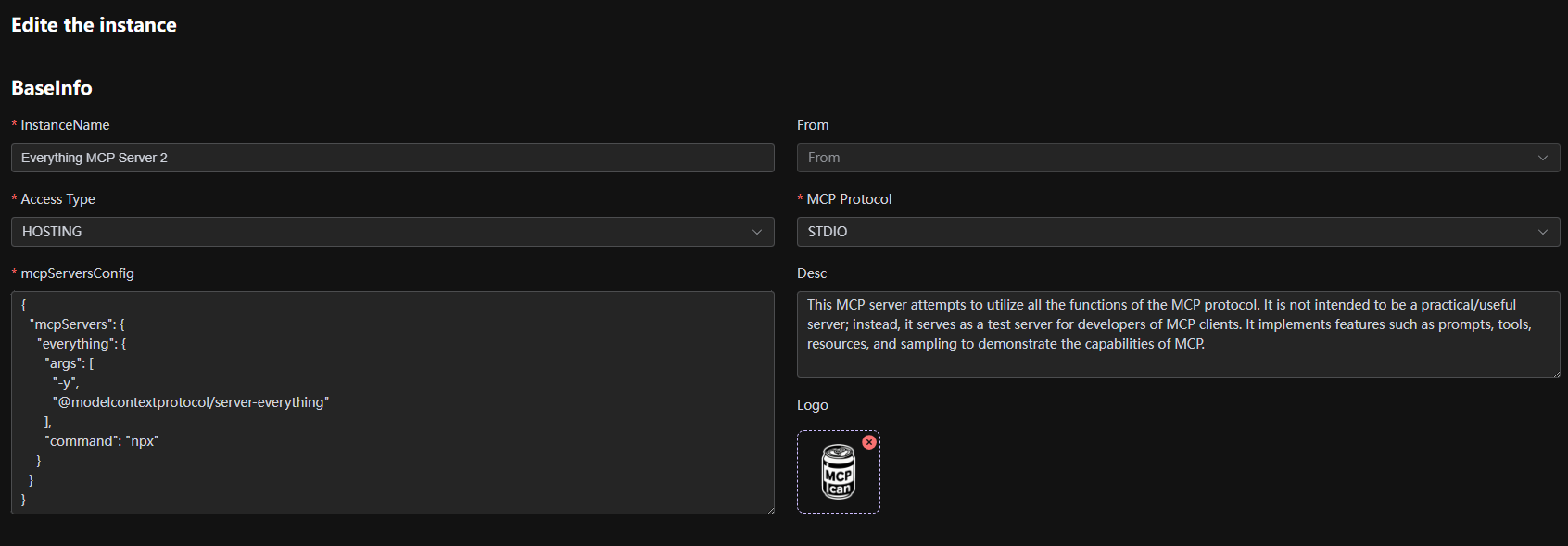
After entering the basic information filling page, complete the following information in sequence according to the page prompts:
Name: Enter the name of the instance, the name must comply with the system naming conventions (such as length limits, special character restrictions, etc., subject to the actual system requirements), it is recommended that the name is clear and easy to understand, and can accurately identify the purpose of the instance;
Access Mode: Click the drop-down box to select the mode that meets the requirements from the available access modes (Hosted, Proxy, Direct);
MCP Protocol: According to actual business needs, select the corresponding MCP protocol version (STDIO, STEAMABLEHTTP, SSE);
MCP Server Configuration: Fill in the relevant configuration information of the MCP server, including but not limited to server address, port number, account password (if any), etc., to ensure the configuration information is accurate and correct, to ensure normal communication between the instance and the MCP server;
Description: Enter the relevant description information of the instance, briefly explain the purpose and applicable scenarios of the instance, etc., to facilitate subsequent management and maintenance of the instance.
4. Fill in Configuration Information
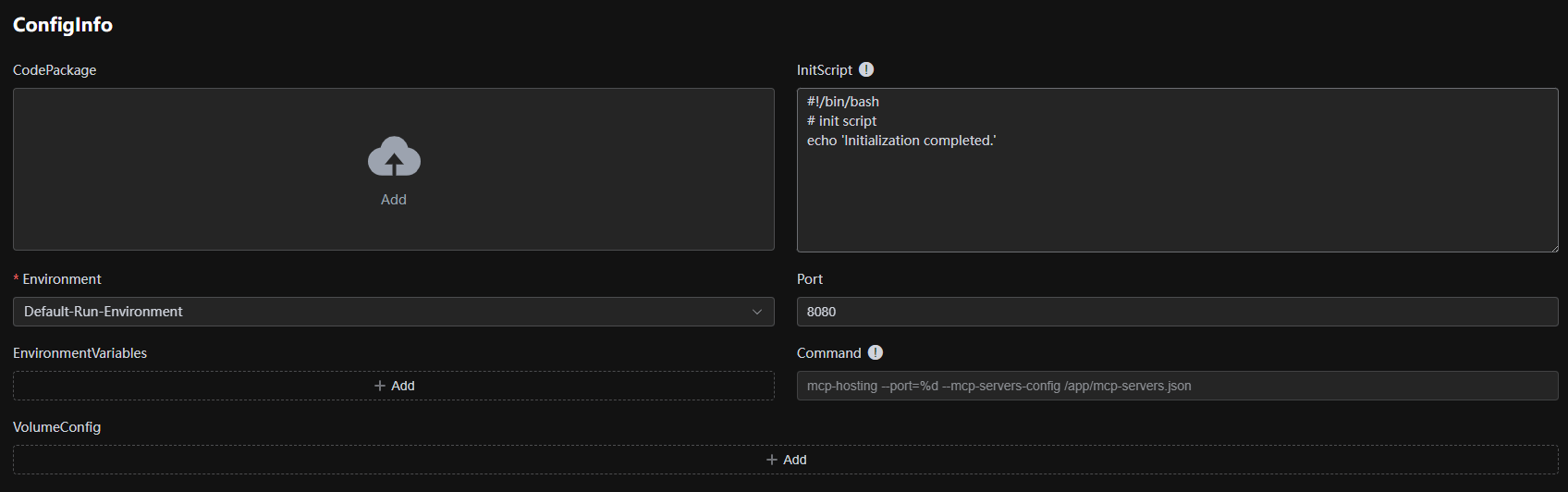
- Code Package Selection: Select the code package or image for deploying the MCP server, ensuring compatibility with the SSE protocol.
- Environment Selection: Select the runtime environment, such as development, testing, or production.
- Initialization Script: Enter the script to be executed before startup, used for installing dependencies, etc.
- Port Number: Specify the port on which the server listens, such as 8080.
- Environment Variables: Set runtime variables, such as API keys.
- Startup Command: Enter the command to start the server, such as node server.js.
- Volume Mounting: Configure the data volume mounting path for persistent storage.